How a Browser Works: A Beginner-Friendly Guide to Browser Internals

As web developers, the browser is our canvas, our compiler, and our testing ground all rolled into one. We spend hours staring at Chrome, Brave or Zen ( the most famous browser these days).
But have you ever stopped to ask the classic interview question: "What actually happens between the moment I type google.com and hit Enter, and the moment the page appears?"
It feels like magic. You type an address, and milliseconds later, a fully interactive, colorful experience appears.
Most beginners think a browser just "downloads the website and shows it." If only it were that simple! A browser is an incredibly complex piece of engineering—easily one of the most sophisticated pieces of software on your computer. It is like an Operating System in itself! It’s a translator, an architect, a fashion designer, and a painter all working together at lightning speed.
Let’s begin the journey together and see how this engine turns raw code into the websites we use every day.
What is a Browser, Really?
At its core, a browser is a program whose main job is to retrieve resources from the web (usually HTML, CSS, and images) and display them to you.
But it’s not just one monolithic block of code. It’s a collection of specialized components working like a team. While modern browsers are complex, we can break them down into a few high-level parts:
The User Interface (The Face): This is the stuff you interact with—the address bar, back/forward buttons, bookmarks menu.
The Networking Layer (The Delivery Guy): This part handles all the internet communication—making HTTP requests, handling DNS, and downloading files.
The Browser Engine (The Manager): It marshals actions between the UI and the rendering engine.
The Rendering Engine (The Artist): This is the star of today’s show. It’s responsible for interpreting the HTML and CSS and actually drawing the pixels on the screen. You might have heard names like Blink (used by Chrome and Edge) or WebKit (used by Safari).
Let’s trace the journey of a webpage through these components.

Step 1: The Delivery (Networking & Parsing)
You type a URL and hit Enter. The networking layer does its thing (DNS resolution, establishing a connection) and sends a request to the server.
The server responds. But it doesn't send a picture of the website. It sends text. Just raw, boring text. Specifically, it sends an HTML file.
The browser receives this stream of data, and the Rendering Engine gets to work. Its first job is Parsing.
A Quick Detour: What is "Parsing"?
"Parsing" sounds technical, but you do it every day. When you read the sentence "The cat sat on the mat," your brain parses it: you identify nouns, verbs, and prepositions to understand the meaning.
In computers, parsing means turning a stream of text into a meaningful structure that the code can use.
- Simple Math Example: If a computer sees the text
2 + 3 * 4, it can't just read left-to-right (which would equal 20). It has to "parse" it using rules (like BODMAS), realizing it needs to do3 * 4first, then add2, to get the correct answer of14.
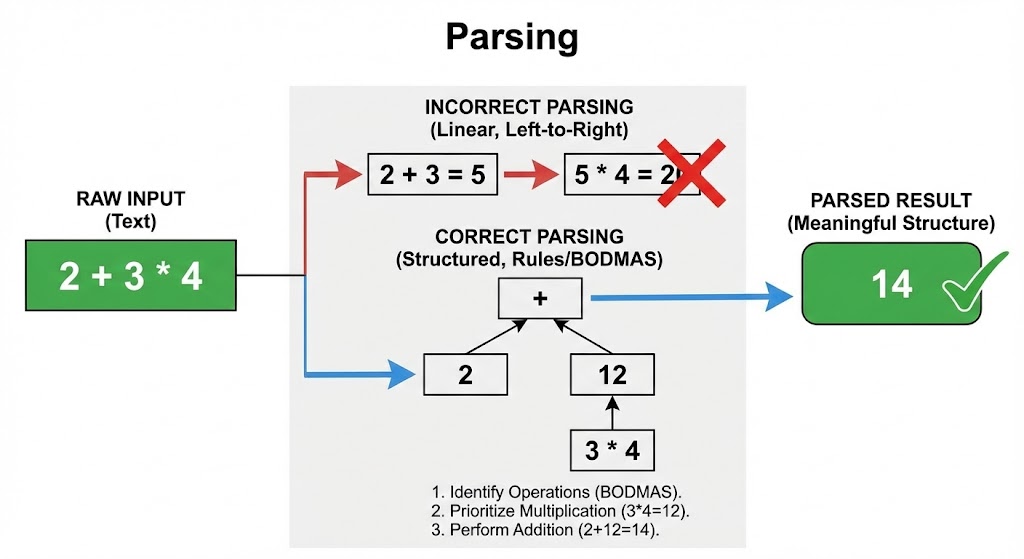
The browser has to do this with HTML code.
Step 2: Building the Blueprint (HTML & The DOM)
The rendering engine takes the raw HTML text and starts parsing it, token by token.
It looks at tags like <html>, <body>, <div>, and <p>. It realizes that these aren't just flat text; they are nested inside each other.
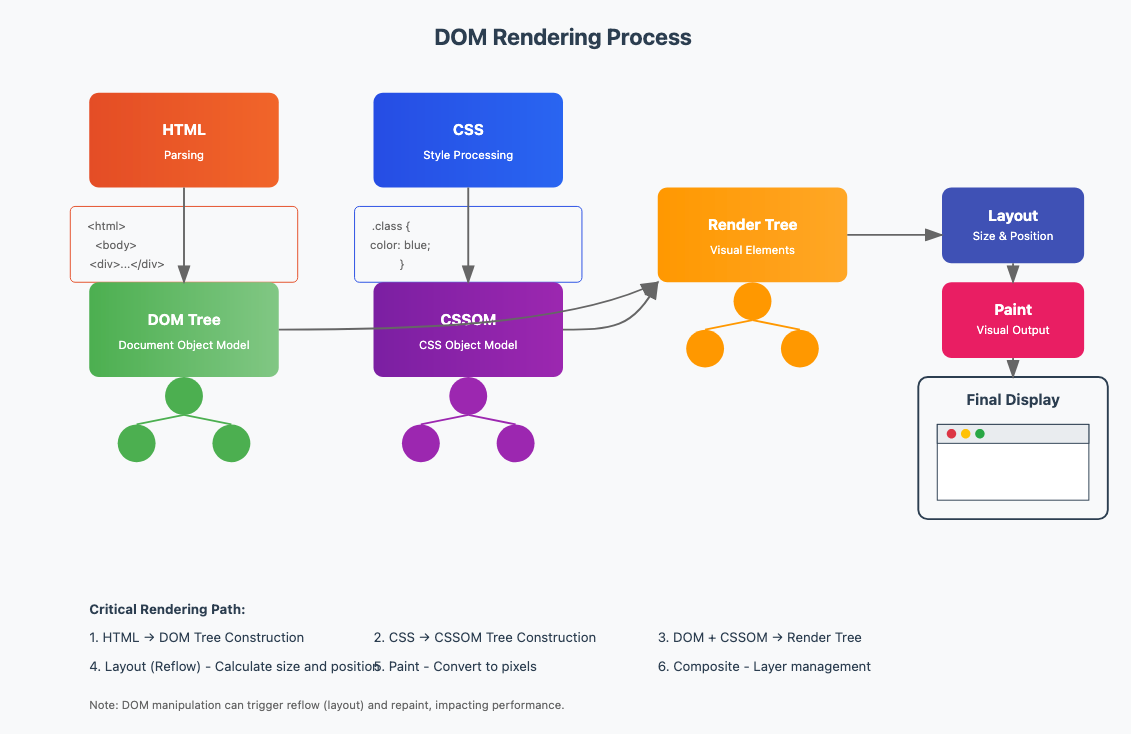
It uses this understanding to construct a tree-like structure called the Document Object Model (DOM).
- Analogy: Think of the HTML text as a long, confusing list of family members. The DOM is the actual Family Tree diagram, showing exactly who is the parent of whom.
<html>is the great-grandparent,<body>is the child, and a<p>tag inside might be the grandchild.
This DOM tree is crucial. It is the internal representation of your website’s structure. And importantly, this is what JavaScript interacts with later if you want to change things on the fly.
Step 3: The Fashion Designer Arrives (CSS & The CSSOM)
While the browser is building the DOM, it usually finds a <link rel="stylesheet"> tag in the HTML. It realizes it needs style information, so it asks the networking layer to fetch the CSS file.
HTML without CSS is ugly—just plain black Times New Roman text on a white background. CSS is the fashion designer that makes it look good.
Just like it did with HTML, the browser has to parse the CSS text. It reads rules like:
h1 { font-size: 32px; color: blue; }
p { margin-top: 20px; }
It builds another tree structure called the CSS Object Model (CSSOM). This tree maps out which styles belong to which elements. It figures out tricky things like "inheritance" (e.g., if the <body> has a specific font, the paragraphs inside it should probably use that font too unless told otherwise).
Step 4: The Great Merger (The Render Tree)
Okay, we have two trees:
DOM: Contains the full structure of the content (everything in the HTML).
CSSOM: Contains all the styling rules.
Now, the rendering engine combines them into a super-tree called the Render Tree.
This is a crucial distinction. The DOM contains everything, including things that won't be seen (like <head>, <meta> tags, or elements set to display: none; in CSS).
The Render Tree only contains things that will actually be drawn on the screen. It’s the final blueprint of visible elements with their associated styles attached.
Step 5: Layout (The Seating Arrangement)
We know what to draw (Render Tree) and what style it has, but we don't know exactly where it goes yet.
Imagine moving into a new flat. You have your sofa (the element) and you know it has a blue cover (the style). But you still need to measure the living room wall to see exactly where it fits and how much space is left for the TV stand.
This process is called Layout (or sometimes "Reflow").
The browser calculates the exact geometry—position, width, and height—of every box in the Render Tree based on the size of your screen (the viewport). It figures out where line breaks should happen in text and how elements should stack.
Step 6: Painting (Pixels on Screen)
Finally, we have everything we need. The browser knows what to draw, what color it is, and exactly where it goes down to the specific pixel coordinate.
The final step is Painting (or "Rasterizing"). The browser's engine goes through the layout and actually fills in the pixels on your monitor. It draws the background colors, the borders, the text, shadows, and images.
Depending on the complexity of the site, it might draw different layers separately (like Photoshop layers) and then "composite" them together at the end.
And voilà! The page appears before your eyes.
Why Should You Care?
This entire process—Networking → Parsing → DOM/CSSOM construction → Render Tree → Layout → Paint—happens in a fraction of a second.
As a beginner, you don't need to memorize every step today. But understanding this flow is what separates okay developers from great ones.
When your website feels "janky" or slow when you scroll, it’s usually because you did something (maybe with JavaScript) that forced the browser to re-do the heavy "Layout" and "Painting" steps too often. Knowing how the engine works is the first step to making your sites blazingly fast.