Understanding HTML Tags and Elements
If you are stepping into the world of coding, HTML is inevitably your first stop. It’s the bedrock of the internet. Every website you love—from Google to Netflix to the IRCTC portal (when it works)—is built on HTML.
Usually, people compare HTML to the "skeleton" of a human body. It’s a decent analogy. If HTML is the bones that give structure, CSS is the skin and clothes that make it look good, and JavaScript is the brain that makes it move and react.
Without HTML, you don't have a website; you just have a blank browser window.
But when you first look at raw HTML code, it just looks like a bunch of words trapped inside angular brackets <like this>. Let's decode what those are.
The "Tiffin Box" Analogy: Understanding Tags
Imagine you are packing a lunch. You have different types of food: Roti, Dal, Rice, and maybe some Gulab Jamun.
You can't just throw them all loosely into a bag; it would be a mess. You need containers to organize them. You put the Dal in one steel katori (bowl), the Roti wrapped in foil, etc.
In the world of web development:
The raw content (text, images) is the food.
HTML Tags are the containers.
A browser is pretty dumb. If you just type "Welcome to my website," it doesn't know if that's a giant headline, a small paragraph, or a button. You have to use tags to tell the browser exactly what that text is.
A standard HTML tag has three parts, acting like a container:
The Opening Tag: The start of the container. Tells the browser, "Hey, a paragraph is starting here." (e.g.,
<p>)The Content: The actual stuff inside. (e.g., "This is my first website.")
The Closing Tag: The end of the container. Notice the forward slash
/. It tells the browser, "Okay, the paragraph ends here." (e.g.,</p>)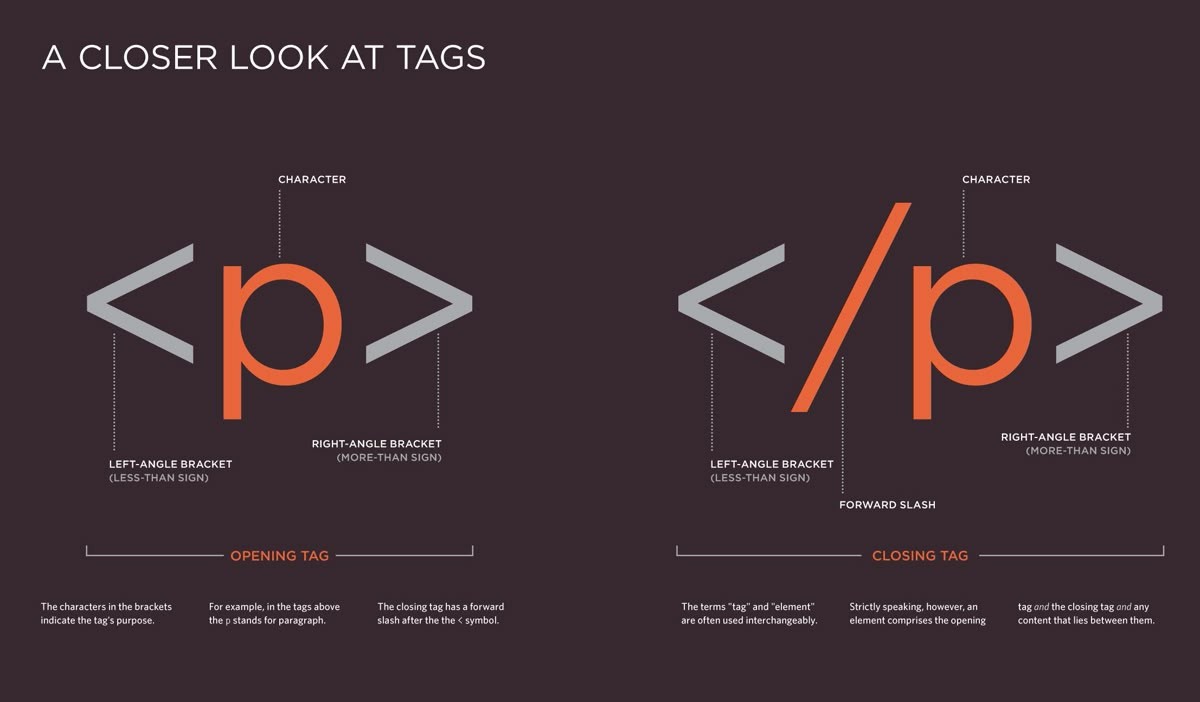
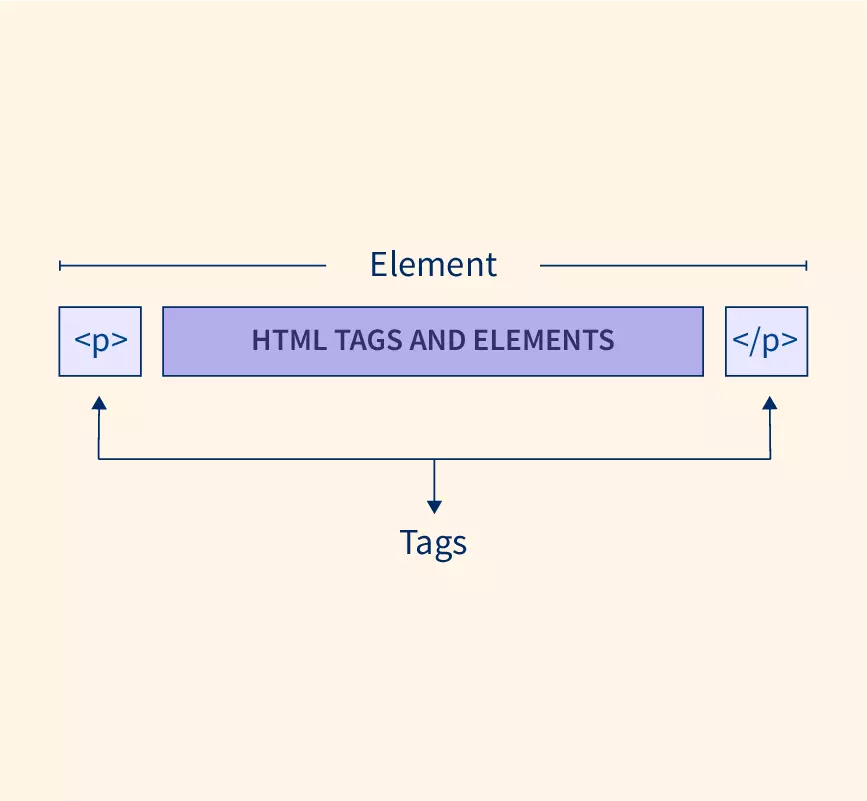
Tag vs. Element: Clearing the Confusion
This is where beginners often get mixed up, and honestly, even experienced devs use these terms interchangeably sometimes. But there is a slight technical difference.
Let's go back to our Tiffin analogy.
The Tag is just the empty metal container itself—the lid and the bowl.
<p>and</p>are tags.The Element is the entire package—the container plus the food inside it.
So, when you see the whole line: <h1>Welcome to ChaiCode</h1> ...that entire thing, from the start of the <h1> to the end of the </h1>, is called an HTML Element.
The Rebels: Self-Closing (Void) Elements
Most HTML elements play by the rules: open tag, content, close tag.
But some elements are rebels. They don't hold any content inside them. They are the content.
Think about an image. You don't "wrap" text to make an image. You just point to an image file. Since there is no content to go between an opening and closing tag, these elements just close themselves immediately.
We call these Self-Closing or Void Elements.
The most common example is the image tag:
<img src="my-photo.jpg" alt="A photo of me">
Notice there is no </img> at the end. It’s a one-man army. Another common one is <br>, which just inserts a line break (like hitting 'Enter' on your keyboard).
Block-level vs. Inline Elements: The Seating Arrangement
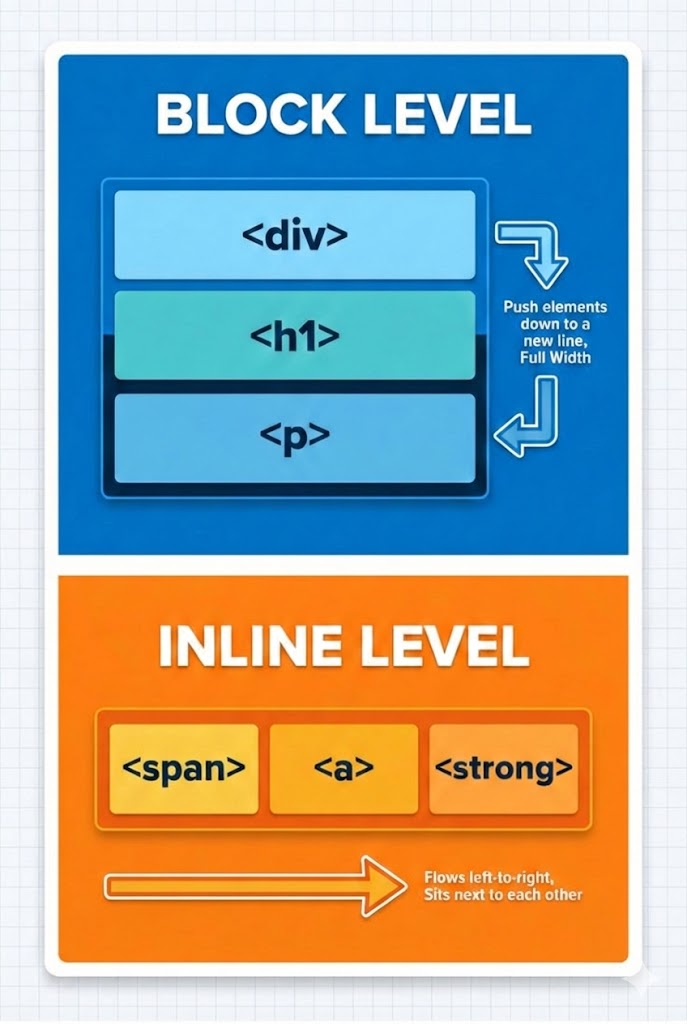
This is the most crucial concept for understanding how websites are laid out. Every HTML element has a default way it likes to sit on the page.
Think of it like seating arrangements in a classroom or a general compartment train.
1. Block-level Elements:
These elements are greedy. They always start on a new line, and they take up the full width available to them, stretching from left to right as far as they can. They don't like sharing their row.
- Common Examples:
<div>(the ultimate container),<h1>to<h6>(headings),<p>(paragraphs).
If you put two paragraphs next to each other in code, they will stack on top of each other on the webpage because they are block-level.
2. Inline Elements :
These elements are polite. They do not start on a new line. They only take up as much width as is absolutely necessary to fit their content. They are happy to sit side-by-side with other elements on the same line.
- Common Examples:
<span>(used to target small bits of text),<a>(links/anchors), bold or italic text tags.
Imagine a sentence where you want just one word to be bold. That bold tag is inline; it sits right inside the sentence without breaking it onto a new line.
Your Starter Toolkit: Commonly Used HTML Tags
You don't need to memorize all 100+ HTML tags right now. Seriously, don't try. As a beginner, you will build 90% of your websites using just a small handful of them.
Think of these as your daily essentials:
The Essentials:
<div>: The generic "division" or box. It’s a block-level element used to group other elements together. It's the most used tag on the web.<span>: An inline container used to mark up a small part of a text, usually to style it differently (like making one word red).
Text Basics:
<h1>to<h6>: Headings.<h1>is the main title (like a newspaper headline), and<h6>is the smallest subtitle.<p>: The paragraph. Most of your website copy goes here.<br>: A simple line break. It forces text down to the next line without starting a new paragraph.
Connecting & Showing:
<a>(Anchor): The hyperlink. This is what connects the web together. You use thehrefattribute to tell it where to go (e.g.,<a href= "https://google.com"> Go to Google </a>)<img>: The image tag. Remember, this is a self-closing rebel! It needs asrcsource attribute to know which image to load.
Lists:
<ul>(Unordered List) +<li>(List Item): This is how you make bullet points. The<ul>is the wrapper, and each point inside is an<li>.
Master these few, and you are ready to build almost anything.